
Add a Folder
Folders are used within Cheetah Digital to organize and store various assets, such as Campaigns or Filters, much like a file management system on a PC (see Browse System for more information on creating and managing Folders).
Within Distributed Marketing, when creating a Mailing, you select the Folder where you want to store the Mailing. The Folder must first be created in Cheetah Digital, then added to your Distributed Marketing account, to make it available for selection.
To add a Folder to Distributed Marketing:
-
From the User Details drop-down menu in the top-right corner of the screen, select Admin. The Administration window is displayed.
-
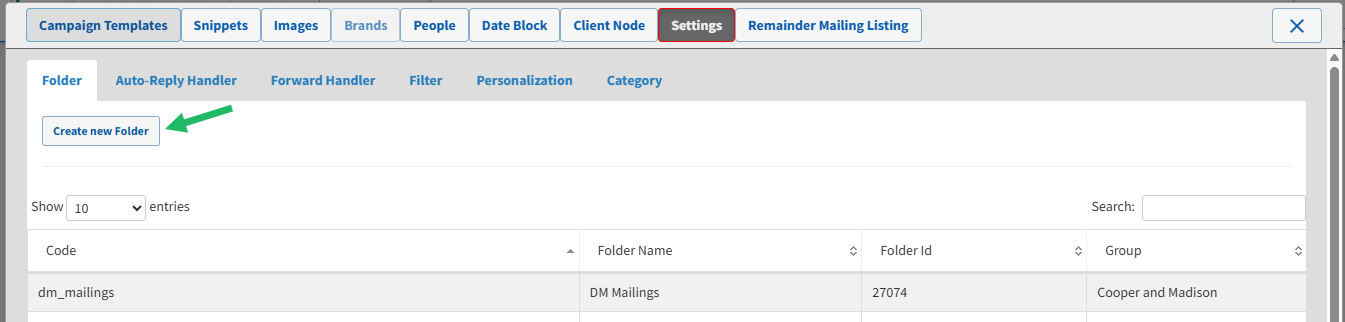
From the tool bar at the top of the Administration window, click Settings. The Settings screen is displayed, with the Folder tab selected by default.
-
Click Create New Folder. The Create Folder pop-up window is displayed.
-
In the Code field, enter an internal name for this item. This value must be unique, and must not include any spaces.
-
In the Name field, enter a user-facing display name for this item as it appears within Distributed Marketing.
-
From the Client Node drop-down menu, select the desired Client Node. Mailings created in this Client Node will have access to this item.
-
Click Select Folder. The platform displays a list of Folders defined within Cheetah Digital.
-
Select the desired Folder. When you click a Folder, the platform displays all of its sub-folders, allowing you to select one of these sub-folders. The External Folder field is automatically populated with the internal reference ID of the selected Folder.
-
Click Save.
